
Pairing Guide
A little guidance. A closer connection.
Follow along with our video walkthrough to get started with pairing in NearHalo.
Prefer to watch on YouTube? Open the pairing video on YouTube.
Need a hand? Contact us with your pairing questions.
Connect your devices, step by step.
One phone for the caregiver. One for the person receiving care.
Have NearHalo ready on both iPhones. If the care recipient uses an Apple Watch, keep it nearby with their iPhone. Work through the steps together so the person sharing can review and choose their permissions.
These screenshots show NearHalo’s actual app screens with sample data. They follow the 3-minute-20-second video above. Screen wording may vary by app or iOS version; iOS permission dialogs appear separately. Select a screenshot to view it at full size.
-
Create the caregiver account
Caregiver’s iPhone · Video 0:05–0:30
 View full-size screenshot
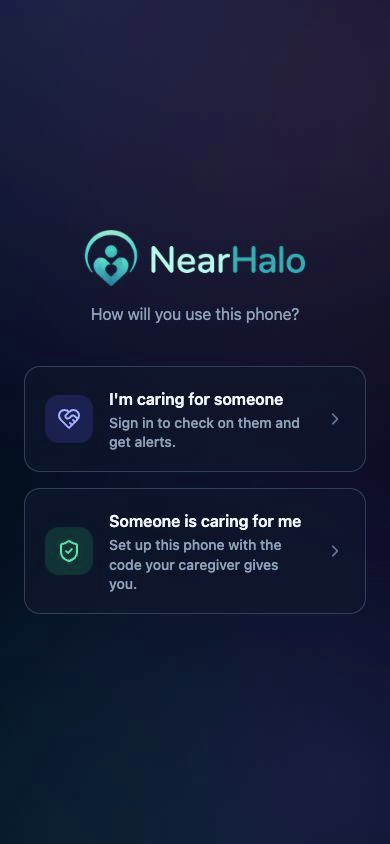
Open NearHalo and choose I’m caring for someone. Create an account with Apple or email, or sign in to your existing account. Enter the name you want the care recipient to see when prompted.
-
Add the person you care for
Caregiver’s iPhone · Video 0:30–1:05
 View full-size screenshot
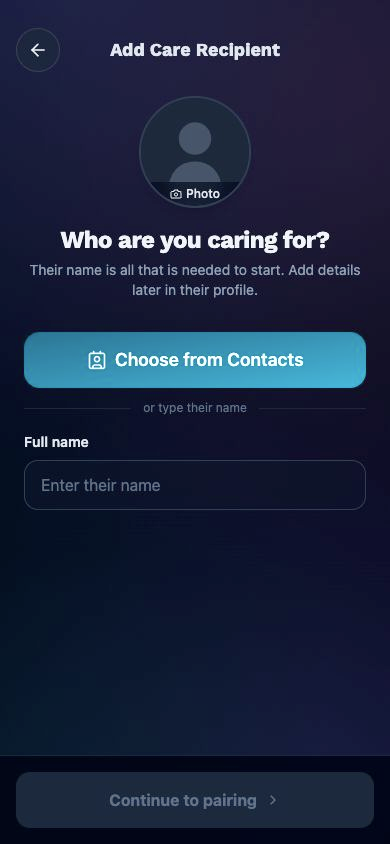
On Add Care Recipient, choose the person from Contacts or type their full name. Then tap Continue to pairing to display the six-digit pairing code.
-
Connect the recipient’s phone
Both iPhones · Video 1:10–1:30
 View full-size screenshot
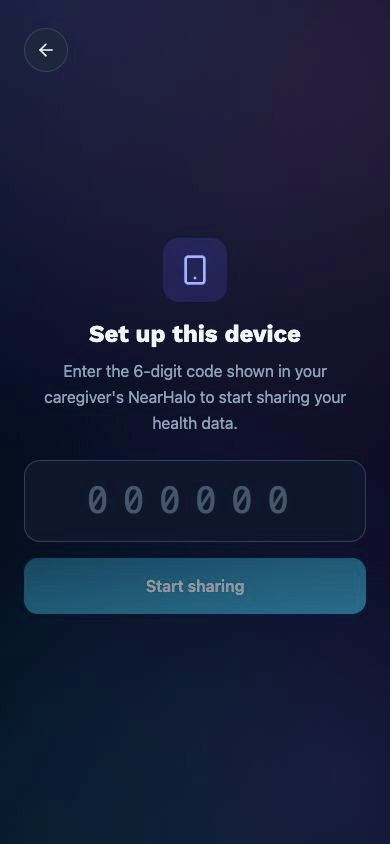
On the recipient’s iPhone, choose Someone is caring for me. Enter the code currently shown on the caregiver’s phone into Set up this device, then tap Start sharing. Use the code on your caregiver’s phone, not a code from the video.
-
Review the sharing agreement
Recipient’s iPhone · Video 1:30–1:35
 View full-size screenshot
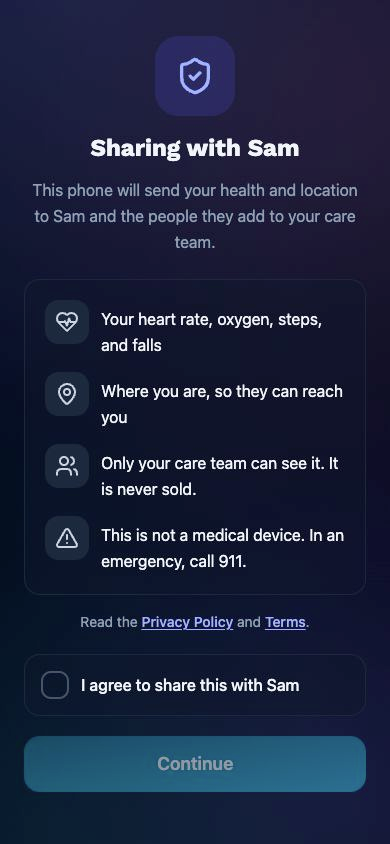
Read the Sharing with… screen and its linked policies. Check the caregiver’s name and review what will be shared. If you agree and meet the stated requirements, select the agreement checkbox and tap Continue.
-
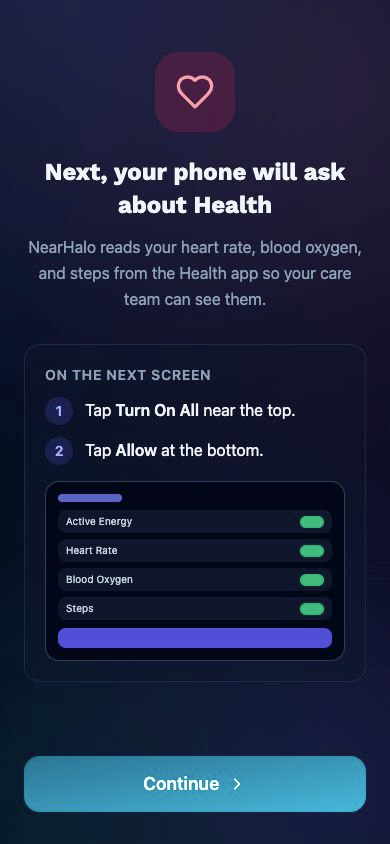
Choose Health permissions
Recipient’s iPhone & Apple Watch · Video 1:40–2:15
 View full-size screenshot
If using Apple Watch, review NearHalo’s Read Access request on the Watch. On the recipient’s iPhone, continue through the Health explanation and review the requested data types. The video demonstrates Turn On All; you can review individual choices before tapping Allow.
-
Review location and background settings
Recipient’s iPhone · Video 2:20–2:35
 View full-size screenshot
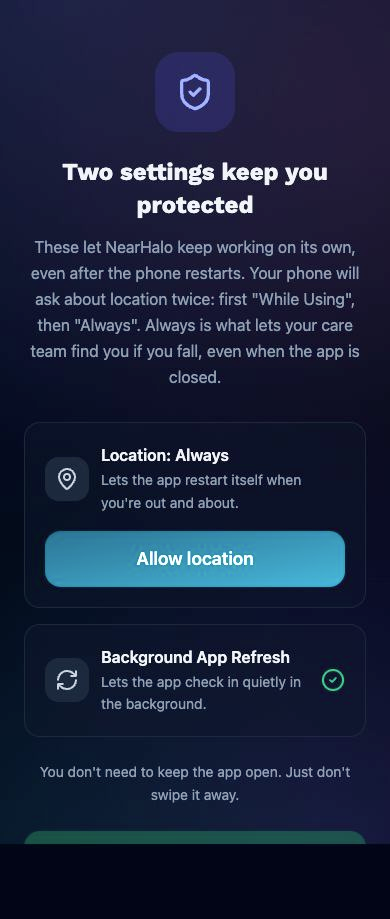
On Two settings keep you protected, tap Allow location and follow the iOS prompts. The walkthrough uses Always location access and enabled Background App Refresh so updates can continue while the app is closed. Review each permission before allowing it.
-
Choose notification permissions
Both iPhones · Video 2:40 & 3:05
 View full-size screenshot
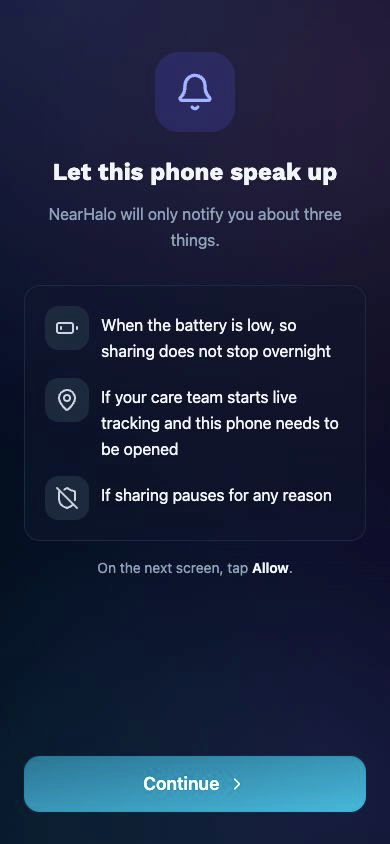
On the recipient’s phone, continue past Let this phone speak up and choose whether to allow notifications. On the caregiver’s phone, review Know the moment something’s wrong and its notification request as well.
-
Check the connection and sharing controls
Both iPhones · Video 2:45–3:20
 View full-size screenshot
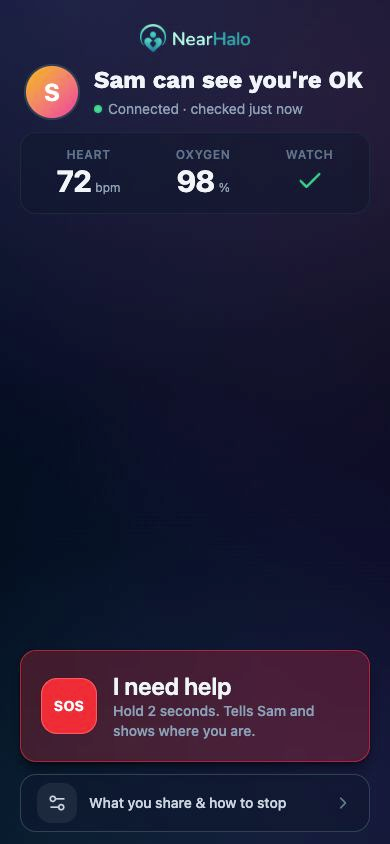
Check the recipient’s sharing status and the caregiver’s connected view. Available readings, device status, and location depend on the permissions and devices in use. On the recipient’s phone, open What you share & how to stop to review sharing, pause it, or stop sharing with the caregiver.
If something is missing
Check the code against the caregiver’s screen, review the recipient’s Health and location permissions, and check connectivity and device battery. If using Apple Watch, review its Health permissions too. For help with your specific setup, contact us.
Pairing does not guarantee that every reading or alert will be available. NearHalo supports caregiving coordination and general wellness; it does not replace emergency services or checking in with the person you care for.
Learn more about recipient sharing controls